 Tiny Online Tools
How to Convert PNG to SVG Fast
How to Convert PNG to SVG Fast
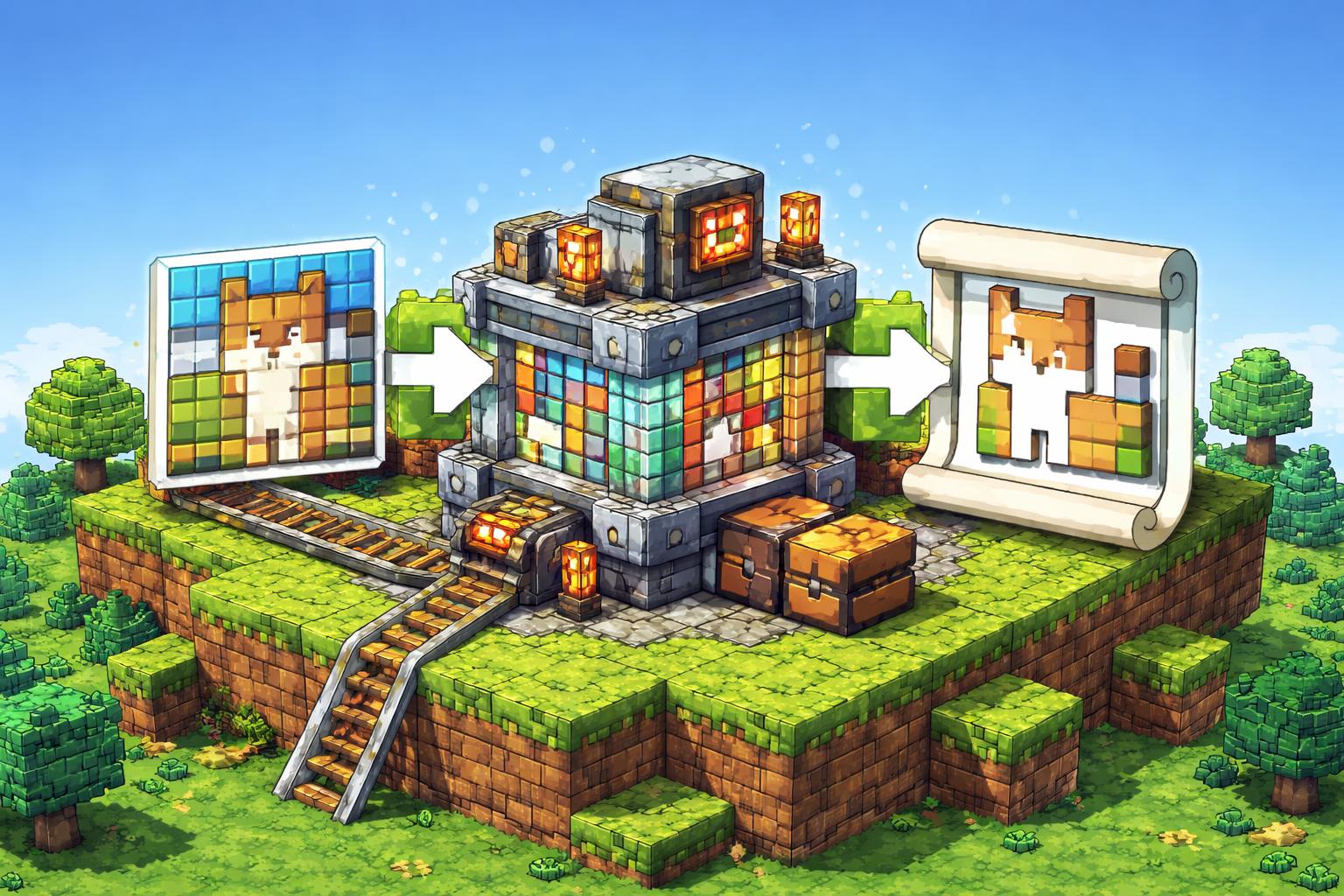
If you’ve ever tried to scale up a logo, icon, or piece of pixel art and watched it turn blurry, you already know why PNG to SVG matters. Raster images are made of pixels, so they lose sharpness when enlarged. SVGs, on the other hand, stay crisp because they’re vector-based.
That’s exactly what PNG to SVG is for. It helps you wrap a raster image inside an SVG container or trace pixel art into colored rectangles. In plain English: it gives you a way to turn pixel-based artwork into a format that’s easier to scale, reuse, and place in modern web workflows.
Why convert PNG to SVG?
Not every PNG should become an SVG, but the right ones benefit a lot from the switch.
Great use cases
- Logos and simple marks: If you have a flat icon or a brand mark made from solid colors, SVG can keep it sharp at any size.
- Pixel art: Tracing pixel art into rectangles preserves the blocky style while making the result easier to embed and scale.
- UI assets: Small interface graphics often work better as SVG because they’re lightweight and display nicely on high-DPI screens.
- Web graphics: SVGs are convenient when you want a vector-friendly asset for websites, presentations, or documentation.
What makes this tool useful
The best part of PNG to SVG is that it supports two common workflows:
- Wrap a raster image inside an SVG container when you need the file format, compatibility, or packaging benefits of SVG.
- Trace pixel art into colored rectangles when the source image is made of clear blocks and you want a vector-style representation that still feels faithful.
That flexibility means you’re not forced into one “correct” conversion style. Instead, you can choose the output approach that matches the source image.
How to use PNG to SVG
Here’s the basic workflow:
- Open PNG to SVG.
- Upload your PNG image.
- Choose the conversion style that fits your goal.
- Preview the result and confirm the edges, colors, and proportions look right.
- Download the SVG and use it in your project.
That’s the practical version. For design work, the real trick is knowing which images are good candidates.
When PNG to SVG works best
A conversion like this is strongest when the source image has:
- solid shapes
- clean edges
- limited colors
- pixel art or icon-like structure
If your PNG is a detailed photo, converting it to SVG may not magically make it better. In that case, a raster format is probably still the right choice. But for simple graphics, the result can be a huge win.
Tips for better results
1) Start with a clean source image
The better the PNG, the better the SVG outcome. Cropped, compressed, or low-quality inputs tend to create messy results.
2) Keep color palettes simple
Pixel art and flat graphics usually translate more cleanly than noisy, anti-aliased images.
3) Check how the SVG will be used
If you’re planning to use it on the web, in a design system, or in a printed asset, test the output at the sizes you actually need.
4) Pair it with related image tools
Sometimes conversion is only one step. You may want to render the SVG afterward with SVG to PNG, convert it to a JPEG with SVG to JPG, or refine stroke-based artwork with SVG Stroke to Fill.
Related tools worth trying
If you’re working across formats, these tools fit naturally into the same workflow:
- SVG to PNG for rendering vector files back into raster images.
- SVG to JPG for exporting SVG artwork to a JPEG.
- SVG Stroke to Fill for improving compatibility of stroke-based SVGs.
- Convert AVIF to PNG when you need a modern image format converted into a more widely supported one.
- Convert BMP to PNG if you’re cleaning up older bitmap files.
Final thoughts
If you only remember one thing, make it this: PNG to SVG is most valuable when you want crisp scaling, easier reuse, and a cleaner format for simple graphics or pixel art. It’s fast, browser-based, and easy to fit into a modern workflow.
So the next time a tiny logo or pixel graphic needs to survive bigger screens, try PNG to SVG. And if you need to bounce back to raster afterward, you already know where to go next.