 Tiny Online Tools
How to Invert Image Colors Online in Seconds
How to Invert Image Colors Online in Seconds
Need a fast way to flip an image from light to dark, or turn a photo into a negative-style effect? Invert Image Colors does exactly that right in your browser. It’s quick, private, and surprisingly useful when you want a dramatic visual effect without opening heavy desktop software.
The best part is the simplicity: upload an image, adjust the inversion strength if you want, and get an instant result. Because Invert Image Colors runs fully in your browser, it’s a great choice when you want a lightweight tool that gets the job done fast. And if you need another pass, you can jump back to Invert Image Colors and fine-tune the look again.
What image inversion is good for
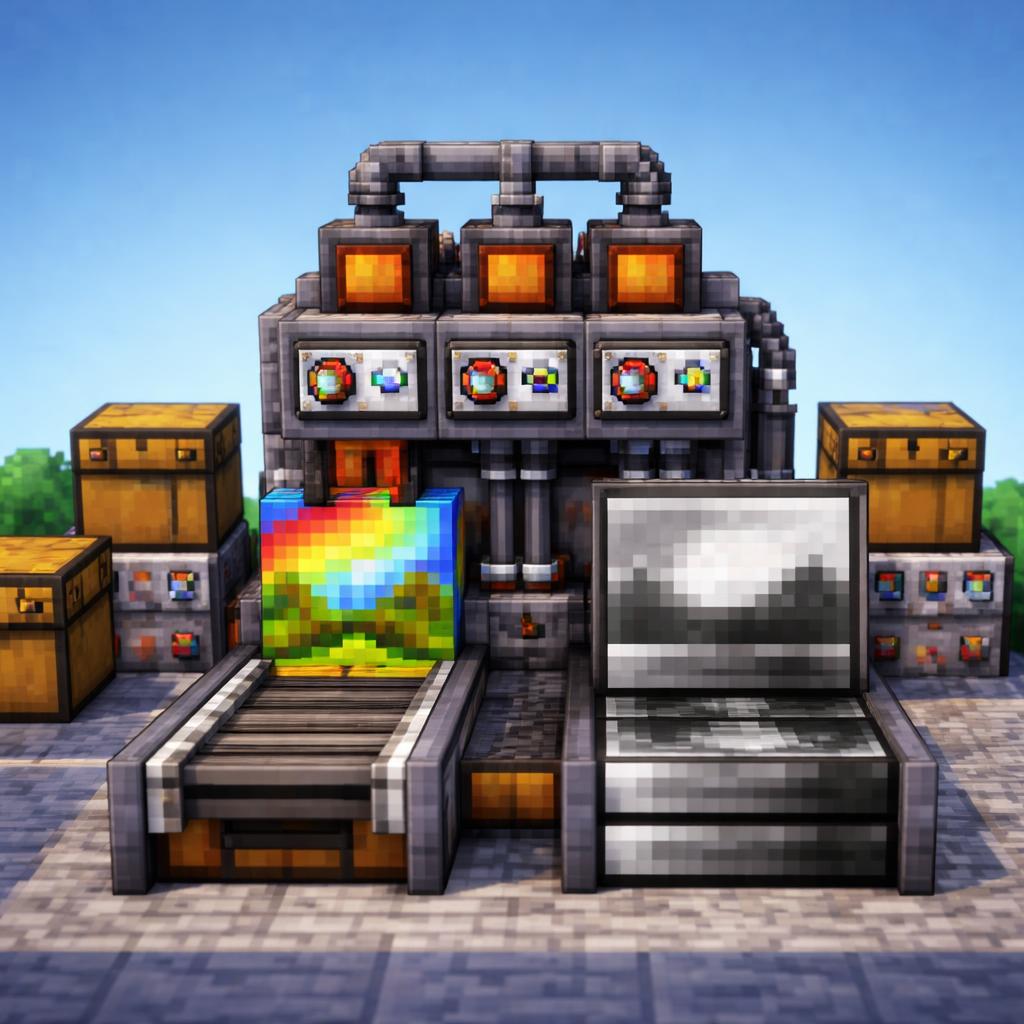
Inverting colors is more than a gimmick. It can help you create eye-catching social graphics, produce quick visual comparisons, or generate a negative-style preview for creative work. If you are experimenting with contrast, mood, or accessibility, color inversion is often one of the fastest ways to see a big visual change.
Here are a few practical uses:
- Creative edits: make a bold, surreal, or sci-fi-looking version of a photo.
- Before-and-after comparisons: show how a design changes when colors are reversed.
- Accessibility checks: quickly test how imagery behaves with a dramatic tonal shift.
- Concept art and mockups: explore alternate palettes without rebuilding the whole image.
If you want a softer transformation instead of a full inversion, try Grayscale Image Converter. For images where you want to reduce the palette into a more graphic look, Posterize Image is another strong option.
Why this tool stands out
A lot of tools claim to be “fast,” but Invert Image Colors really is built for speed. There’s no complicated editor to learn. There’s no export maze. There’s just a focused utility that does one thing well.
That focus matters when you’re in a hurry. If you’re editing a batch of visuals for a post, testing a design variation, or trying to create a stylized effect on the fly, a dedicated image inverter saves time and keeps your workflow moving.
It also pairs nicely with other image utilities. For example, you can invert an image, compare the result against a blurred version with Blur Image, or inspect the palette first with Dominant Color Finder. If you want to frame the final result, Image Border Adder can help finish the composition.
How to use Invert Image Colors
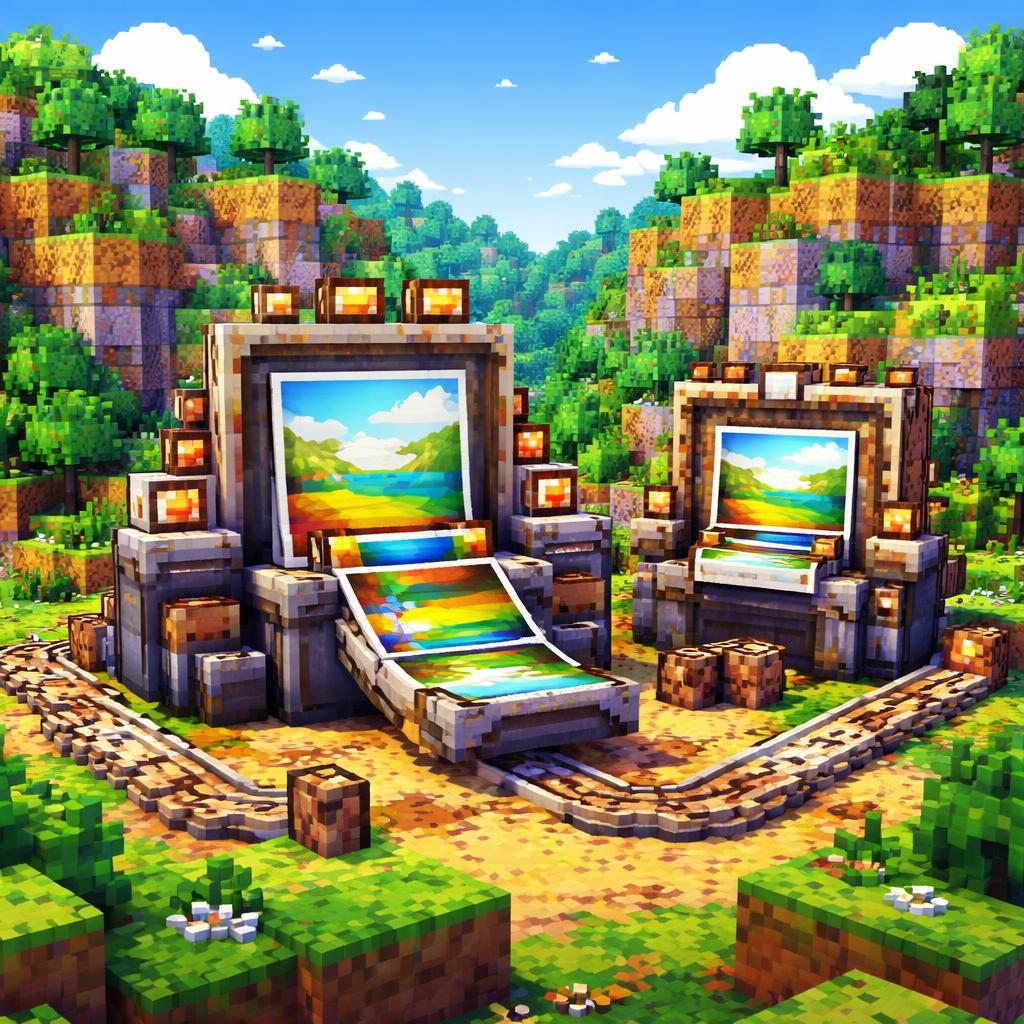
Getting started is straightforward:
- Open Invert Image Colors.
- Upload the image you want to transform.
- Adjust the inversion intensity if you want a subtler or stronger effect.
- Toggle alpha inversion if your image includes transparency and you want that channel affected too.
- Preview the result and download the finished image.
That’s it. In a few clicks, you have a new version of the image ready to use.
Tips for better results
A few small choices can make a big difference:
- Start with a clean source image. Inversion works best when the original has clear contrast.
- Try multiple intensities. A partial inversion can be more useful than a full flip.
- Watch transparency. If your image has soft edges or overlays, alpha inversion can change the final look.
- Compare adjacent edits. Use similar tools to find the best companion effect for your project.
For example, grayscale can make inverted art feel more editorial, while posterization can make it feel more poster-like and graphic. And if you need a quick color readout before editing, the dominant color tool is handy.
When to use this instead of a full editor
If your task is just one thing — invert colors — you do not need a giant editor slowing you down. That is where a focused browser tool shines. Invert Image Colors keeps the workflow lean, and that makes it ideal for quick experiments, light design work, and everyday image tweaks.
In practice, that means less time hunting through menus and more time getting the exact effect you want. Whether you’re making a playful negative, prepping a graphic for a post, or testing a visual idea, this tool keeps the process simple.
Final thoughts
If you need a fast, private, browser-based way to reverse tones in an image, Invert Image Colors is an easy win. It’s the kind of utility that earns its place in your bookmarks because it solves a real problem instantly.
Try it for creative edits, quick comparisons, or just to see how a photo changes when every light becomes dark and every dark becomes light. Then, when you want a different kind of transformation, explore the related tools and keep building from there.