 Tiny Online Tools
How to Invert Image Colors Online Fast
How to Invert Image Colors Online Fast

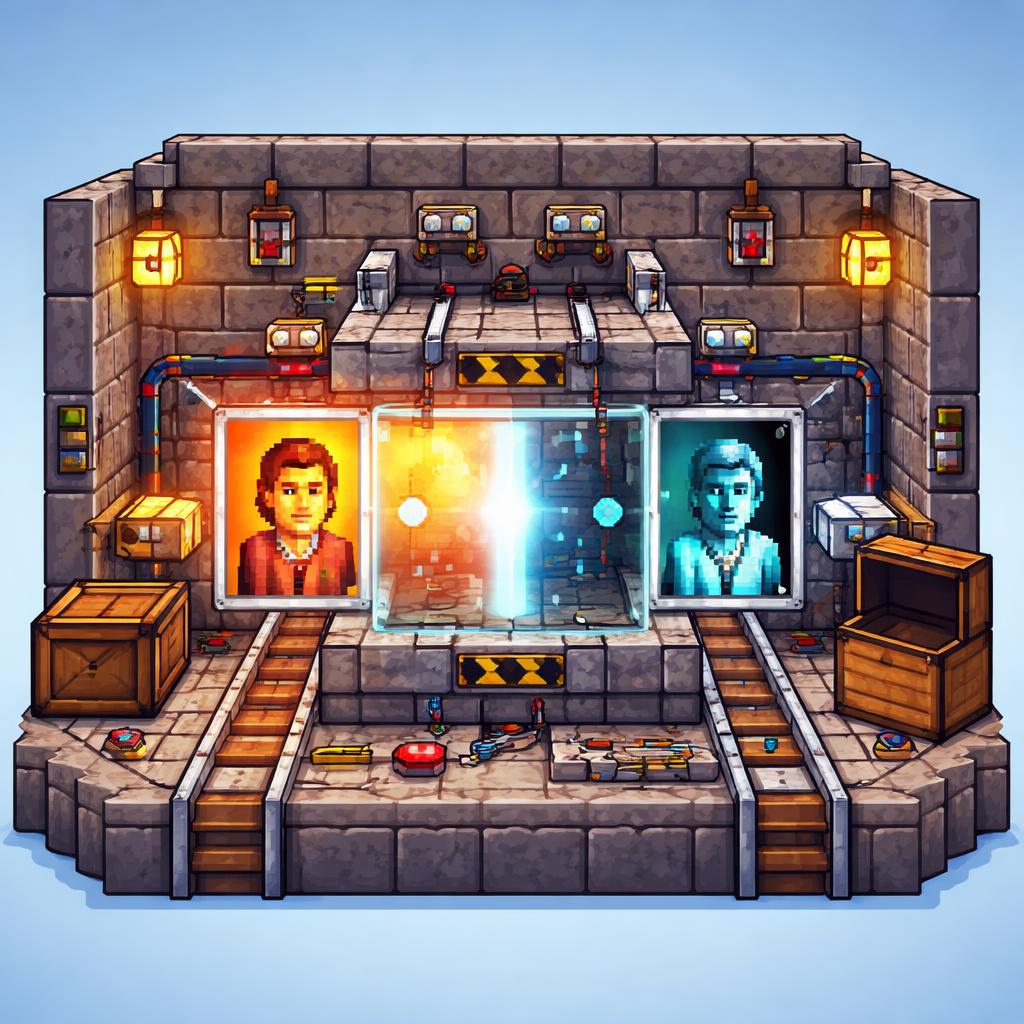
If you’ve ever wanted a quick negative-image effect without opening desktop software, Invert Image Colors is exactly the kind of browser tool that saves the day. It flips the colors in any image instantly, right in your browser, and it stays private because the process runs locally. That makes it ideal for experimentation, accessibility checks, design mockups, and just plain creative fun.
The best part is how simple it is to use Invert Image Colors. You upload an image, adjust the intensity if you want a partial effect, optionally invert alpha too, and you get a result in seconds. No install. No complicated layers. Just a fast, focused tool that does one thing very well.
Why invert image colors?
Color inversion is useful in more places than you might think:
- Creative effects: Turn ordinary photos into striking negatives for posters, thumbnails, or concept art.
- Accessibility and contrast checks: Inverted previews can help you explore how an image feels in a dark-themed layout.
- Design iteration: Quick color flips can reveal shapes, edges, and composition you might miss in the original.
- Fun edits for social content: A negative version can make a standard image stand out in a feed.
Because Invert Image Colors is browser-based, it’s a good choice when you want a fast edit without uploading a file into a heavy desktop workflow.
How to use it
Using the tool is straightforward:
- Open Invert Image Colors.
- Upload the image you want to edit.
- Adjust the inversion intensity if you want a subtle or full negative effect.
- Turn alpha inversion on only if you need transparency channels flipped too.
- Download the finished image.
That’s it. For a single-purpose utility, it’s impressively efficient.
Practical use cases
1. Build a dramatic thumbnail
If your project needs a bold visual, a negative image can create instant contrast. Pair it with strong typography elsewhere in your design and you’ve got a memorable thumbnail in minutes.
2. Test light and dark compositions
Designers often want to know whether an image still reads well when the surrounding UI changes. A quick inversion can act like a stress test for shapes and tonal balance.
3. Explore alternative artistic directions
Sometimes the simplest way to find a new look is to start with the inverse of what you already have. Invert Image Colors can help you rapidly generate reference material before moving into more advanced editing.
Tips for better results
- Start with high-contrast source images if you want the negative to stay readable.
- Try partial intensity first if a full inversion feels too harsh.
- Use alpha inversion only when transparency matters in the final asset.
- Compare the result against a normal version side by side to judge whether the effect improves the image.
If you’re working through a batch of visual edits, you may also like related tools such as Grayscale Image Converter, Posterize Image, and Blur Image. For image analysis and finishing touches, Dominant Color Finder and Image Border Adder are handy companions.
When this tool is the right choice
Choose Invert Image Colors when you want:
- a fast browser-based image negative
- optional partial intensity control
- a private workflow that doesn’t require a desktop app
- a quick way to experiment with contrast and mood
In other words, it’s the sort of utility you bookmark once and keep coming back to whenever a project needs a rapid visual twist.
Final thoughts
Invert Image Colors is proof that small tools can be genuinely useful. It takes a very specific task, makes it easy, and gets out of your way. Whether you’re creating eye-catching graphics, testing composition, or just having fun with photo effects, this is one of the fastest ways to invert image colors online.
If you need a simple, private, no-fuss negative-image tool, give Invert Image Colors a try.