 Tiny Online Tools




Master Letter Spacing with Interactive Previews and Readability Guidance
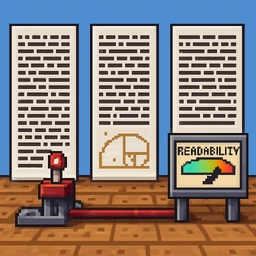
Letter spacing (or tracking in typography) is one of the most powerful tools for controlling the visual weight and readability of text. Yet it's often guessed rather than carefully calibrated. This tool removes the guesswork by showing you exactly how different spacing values affect your text while providing professional readability zones to guide your choices.
How Letter Spacing Impacts Design
Letter spacing affects not just readability but the entire mood and perception of your typography. Tighter spacing can feel sophisticated or cramped. Looser spacing feels airy or elegant but can become hard to read if taken too far. Different font sizes and weights respond differently to the same spacing values, making this tool essential for precise control.
Key Features and Practical Use Cases
1. Perfect All-Caps Headlines and Branding All-caps text requires notably more letter spacing than lowercase to maintain readability and elegance. Instead of eyeballing it, use this tool's readability zones to find the sweet spot between 0.05–0.15em for professional-looking headlines, logos, and brand statements. Try pairing it with serif fonts for classic elegance or sans-serifs for modern impact.
2. Fine-Tune Body Text and Labels Body text and UI labels typically benefit from tighter, more neutral spacing (0 to 0.05em). Use the live preview to test your exact font and size combination. Check how your choice feels at the smallest sizes used in your design—buttons, form labels, and captions often need slightly more breathing room than you'd expect.
3. Create Display and Artistic Effects Display text and decorative headers can push spacing to 0.1–0.5em or beyond. Use the tool to explore how far you can push spacing while maintaining visual hierarchy and readability. This is especially powerful for landing pages, posters, and creative projects where typography takes center stage.
Professional Workflow Integration
The tool lets you toggle between px and em units—essential since em values scale with font size and transfer better across your entire design system. Adjust your exact font family and size to match your final design context, then copy the generated CSS directly into your stylesheets. Always test the final spacing in your actual layout at the sizes where it will really live in your interface.