 Tiny Online Tools
Four outputs, and which one you actually want
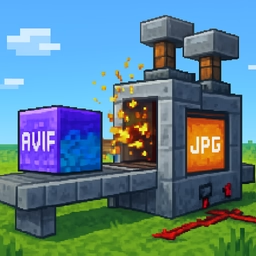
SVG is the one to reach for if you can. pageToSvg translates the page's XAML directly: a Path becomes a <path>, a Glyphs run becomes <text>, a Canvas becomes a <g>. The result is still vector — scalable, editable in any drawing program, with selectable text. One file per page, or all of them in a ZIP.
PNG is lossless raster and can be transparent. XPS pages carry an opaque white background rectangle; asking for transparency removes exactly that one rectangle before rasterising, and nothing else.
JPEG is smaller and lossy, with a quality slider. It has no alpha channel, so a background colour is always painted.
PDF is the one most people came for, and it deserves a straight answer.
The PDF is a raster PDF
Each page is rendered to an image at your chosen resolution and drawn onto a PDF page. The page size is exact: XPS measures in 1/96 inch and PDF in 1/72 inch points, so the size is multiplied by 72/96. An 816 × 1056 unit XPS page comes out as a 612 × 792 pt PDF page, which is US Letter to the point.
What you do not get is vector text. The words in the PDF are pixels. You cannot select them, search them, or scale past the resolution you chose. If that matters, take the SVG output — it keeps everything — or use 300 dpi and accept a larger file.
Converting XPS text into real PDF text would mean re-embedding each font and re-deriving per-glyph positions from metrics this tool does not have. Claiming to do that and quietly rasterising anyway would be worse than saying so.
Resolution
96 dpi is exactly 1:1 with the document's own units. 150 is comfortable on screen, 300 is a normal print resolution, 600 is for archives. Browsers cap canvas size, and the cap is lower than you would expect on some of them; if a request exceeds it, the page is rendered at the largest size that fits and the tool tells you the resolution it actually used instead of silently giving you something smaller.
Everything stays local
The document is opened, rendered and encoded in your browser. Nothing is uploaded, and the rasteriser never fetches anything — it works precisely because images and fonts are inlined into the SVG first.