 Tiny Online Tools
How to Pixelate Images for Privacy and Retro Style
How to Pixelate Images for Privacy and Retro Style
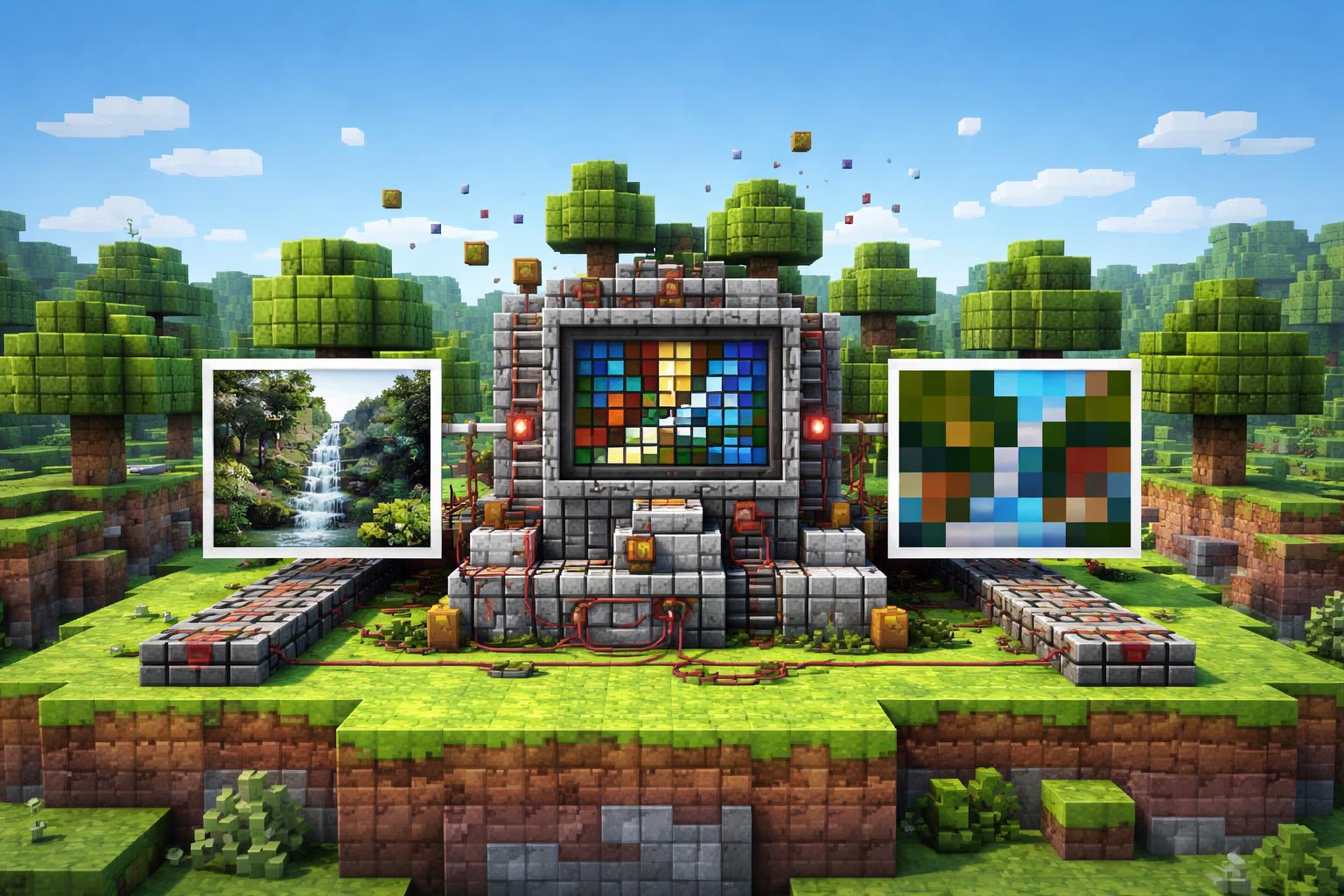
If you have ever needed to hide a face, blur out a detail, or give a screenshot a retro 8-bit look, pixelation is one of the simplest tools you can reach for. The Pixelate Image tool does exactly that: it turns any image into larger square blocks, all directly in your browser.
That matters for two very different reasons. First, pixelation is a fast privacy fix for screenshots, photos, and shared assets. Second, it is a creative effect that can make an image feel nostalgic, game-like, or intentionally stylized. Because Pixelate Image runs entirely in your browser, it is also a convenient option when you want a quick edit without uploading files to a separate app.
What pixelation is good for
Pixelation works best when you want the image to stay recognizable as an image, but not readable in full detail. That makes it useful in a lot of everyday workflows:
- Redacting sensitive content: hide names, addresses, account details, or faces before sharing.
- Creating retro visuals: give a modern photo or icon a chunky 8-bit vibe.
- Making screenshots clearer for demos: obscure private areas while keeping the overall layout visible.
- Designing game-inspired assets: experiment with blocky textures for mockups, thumbnails, or social posts.
If you need a softer hide instead of a hard blocky mosaic, Blur Image is a natural comparison point. If you want a different stylized look, Posterize Image reduces color levels instead of expanding pixels.
Why people choose Pixelate Image
The biggest advantage of Pixelate Image is how direct it feels. There is no complex workflow to learn. You adjust the block size, preview the result, and decide whether the image is still readable enough for your goal.
That simplicity makes it ideal for:
- Quick content moderation when you need to share a screenshot safely.
- Social graphics where a low-res or nostalgic treatment fits the brand.
- Content creation when you want an intentionally retro texture instead of a polished finish.
Because it is browser-based, it is also a good fit for quick edits on shared computers or lightweight workflows where installing desktop software would be overkill.
Three practical ways to use it
1) Hide private information in screenshots
This is the most common use case. You might need to post a dashboard screenshot, a billing page, a chat conversation, or a product demo. Pixelation lets you preserve the context while obscuring the exact text or face.
2) Make a retro 8-bit style image
The pixelated look is not just for privacy. It is a design choice. A photo with chunky blocks can work well for game-related thumbnails, nostalgic articles, or fun banner art.
3) Simplify busy images for presentations
Sometimes a photo has too much detail for a slide or tutorial. Pixelation can reduce visual noise while keeping the subject and composition obvious.
How to use Pixelate Image
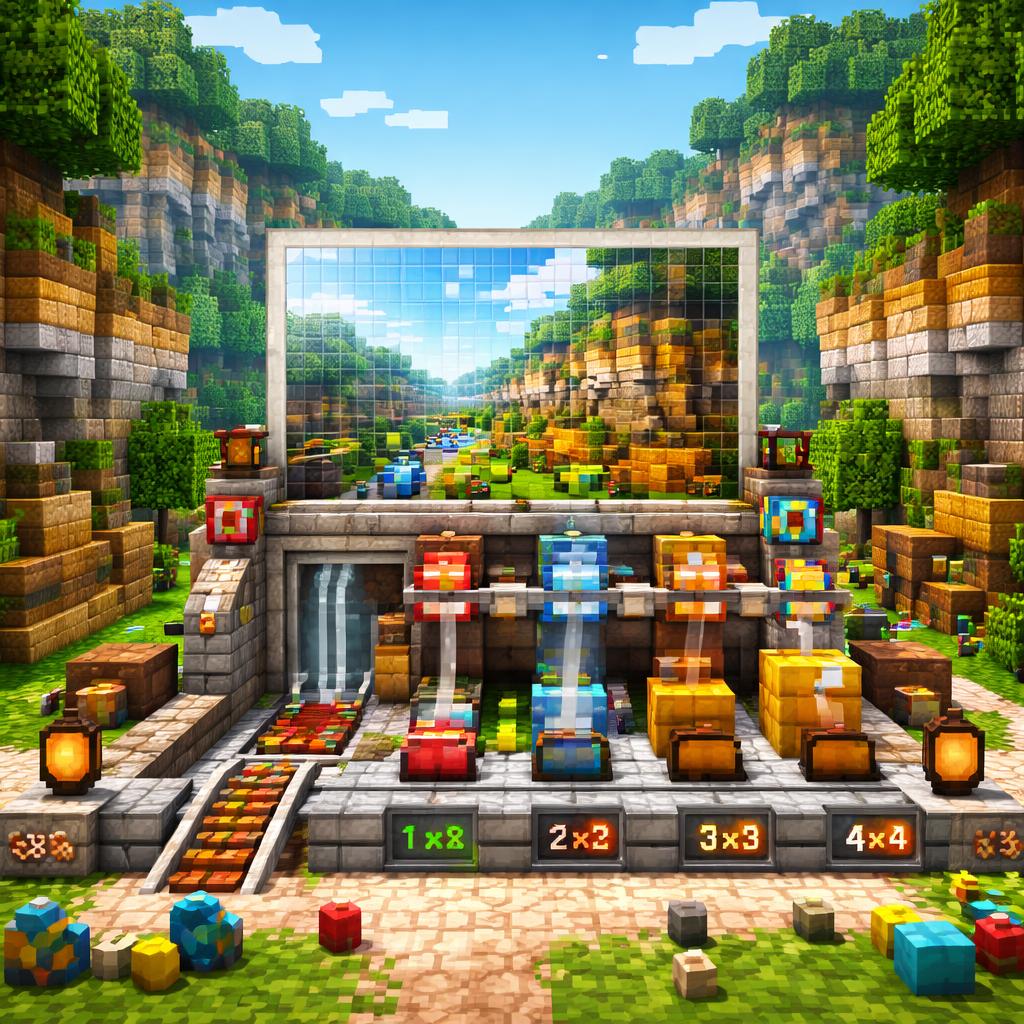
Using Pixelate Image is straightforward:
- Open the tool.
- Upload or paste in the image you want to edit.
- Adjust the block size until the balance between privacy and readability feels right.
- Preview the result.
- Download the finished image and use it wherever you need it.
A useful tip: start with a smaller amount of pixelation than you think you need. For privacy redaction, increase the block size until text or facial features are no longer readable. For creative effects, stop earlier so the image still has enough structure to feel intentional.
Tips for better results
- Use larger blocks for sensitive information. If the goal is privacy, err on the side of more distortion.
- Use moderate pixelation for design work. Too much can turn a cool effect into visual noise.
- Check the final export at the size it will be published. Pixelation can feel different on a thumbnail than it does full-size.
- Match the effect to the job. If you only need a gentle softening, Blur Image may be a better fit.
- Consider the color palette. For a harsher graphic look, Grayscale Image Converter can strip away color before or after other edits.
Related tools to explore
If you like Pixelate Image, a few neighboring tools are worth bookmarking:
- Posterize Image for bold color simplification.
- Blur Image for soft redaction.
- Grayscale Image Converter for monochrome editing.
- Invert Image Colors for a high-contrast negative effect.
- Edge Detection Tool for outline-heavy, technical-looking imagery.

Final thoughts
Pixelate Image is one of those tools that feels small until you need it. Then it becomes instantly useful. Whether you are redacting a screenshot, creating a retro look, or just experimenting with a blocky aesthetic, it gives you a fast, private, browser-based way to get the job done.
If your next image needs to be safer, simpler, or more stylized, Pixelate Image is a smart place to start.